Last Updates Configuration
Introduction
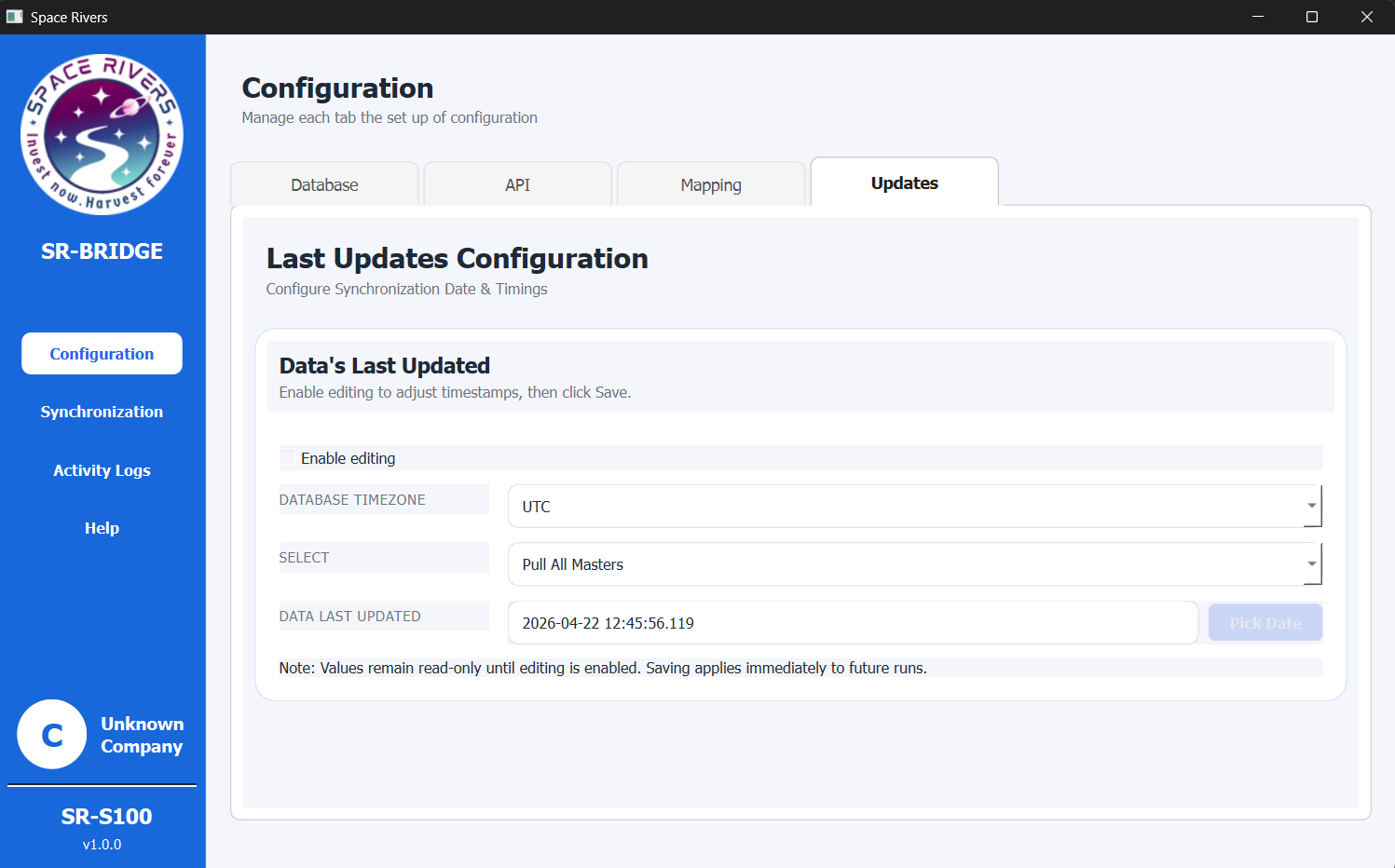
The Updates tab is where you control the last updated timestamp used by SR-BRIDGE.
Use this page when you want to align the app with your database time, correct a sync point, or prepare the next synchronization run.
Overview
This page helps SR-BRIDGE understand what has already been processed and what should be picked up next.
If the fields are locked, turn on Enable editing first.
Purpose of this tab
This tab is used to:
- Select the database timezone
- Choose which master data set should be tracked
- View and edit the last updated date and time
- Use Pick Date to choose the timestamp safely
Field explanation
Enable editing
Turn on Enable editing before changing the timezone, dataset, or timestamp.
Until editing is enabled, the values stay read-only.
Database Timezone
Choose the timezone that matches the database or the system that stores the update time.
Use the same timezone consistently so the timestamp stays accurate.
Select
Use the Select list to choose the master data group you want to update.
In the current screen, the selected value is Pull All Masters. Choose the dataset that matches the data you want SR-BRIDGE to track.
Data Last Updated
This field shows the current last updated date and time.
You can change it when you need to correct the sync point or prepare for a new synchronization run.
Pick Date
Click Pick Date to open the date and time picker.
Use the picker instead of typing the value manually when you want to avoid format mistakes.
Step-by-step setup
- Open the SR-BRIDGE desktop app.
- Go to Configuration in the left menu.
- Open the Updates tab.
- Select Enable editing.
- Choose the correct Database Timezone.
- Select the dataset or master data group you want to update.
- Click Pick Date.
- Choose the correct date and time.
- Review the Data Last Updated value before leaving the page.
How to confirm setup
After you update the timestamp, SR-BRIDGE uses the new value for later synchronization runs.
This is important because the timestamp controls what data is treated as new and what is treated as already processed.
If you are correcting a missed sync, confirm the new value before starting the next run.
Notes and Tips
- Enable editing before changing any values.
- Keep the timezone consistent with your source database or sync source.
- Use Pick Date when you want an exact timestamp.
- Update timestamps only when you understand the effect on future synchronization.
- A later timestamp can reduce the amount of new data picked up, while an earlier timestamp can cause more records to be processed again.
Troubleshooting
The date cannot be changed
Make sure Enable editing is selected first.
The wrong data seems to sync later
Check the following:
- The timezone is correct
- The last updated date and time are correct
- The selected dataset is the one you intended
The timestamp format looks confusing
Use Pick Date instead of typing the value manually.
This helps avoid format errors and makes it easier to choose the exact date and time you need.