Synchronization
Introduction
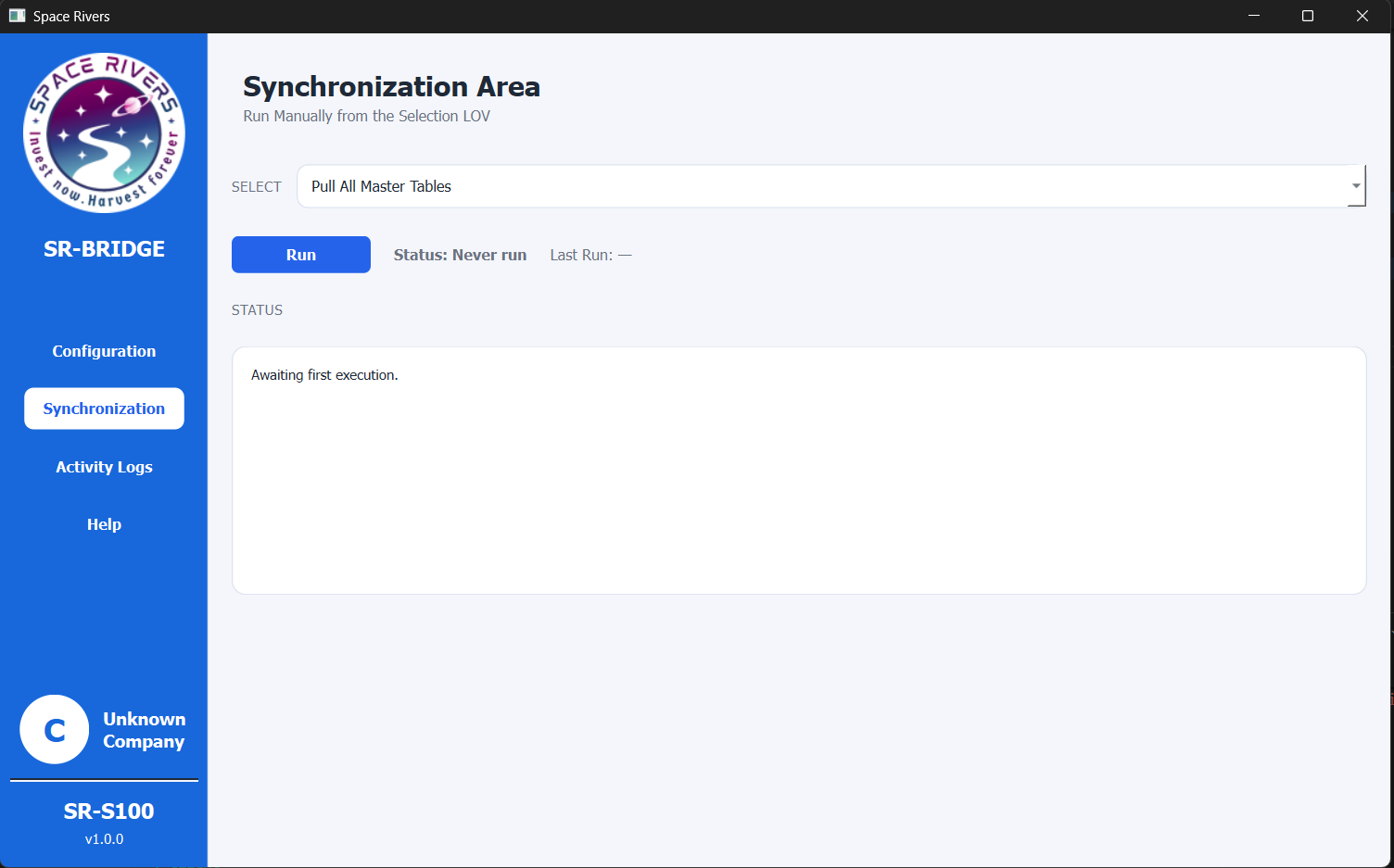
The Synchronization page is where you run SR-BRIDGE manually.
Use this page after you finish the configuration steps so you can choose what data to process and start the run from the desktop app.
Overview
This page has three main parts:
- A Select list to choose the sync action
- A Run button to start the process
- A Status area to show the latest result and run history
When the page first opens, the status may show that the application is waiting for the first execution.
Purpose of this page
This page is used to:
- Choose the type of synchronization you want to run
- Start the selected process manually
- Check the current status
- Review the last run information
Field explanation
Select
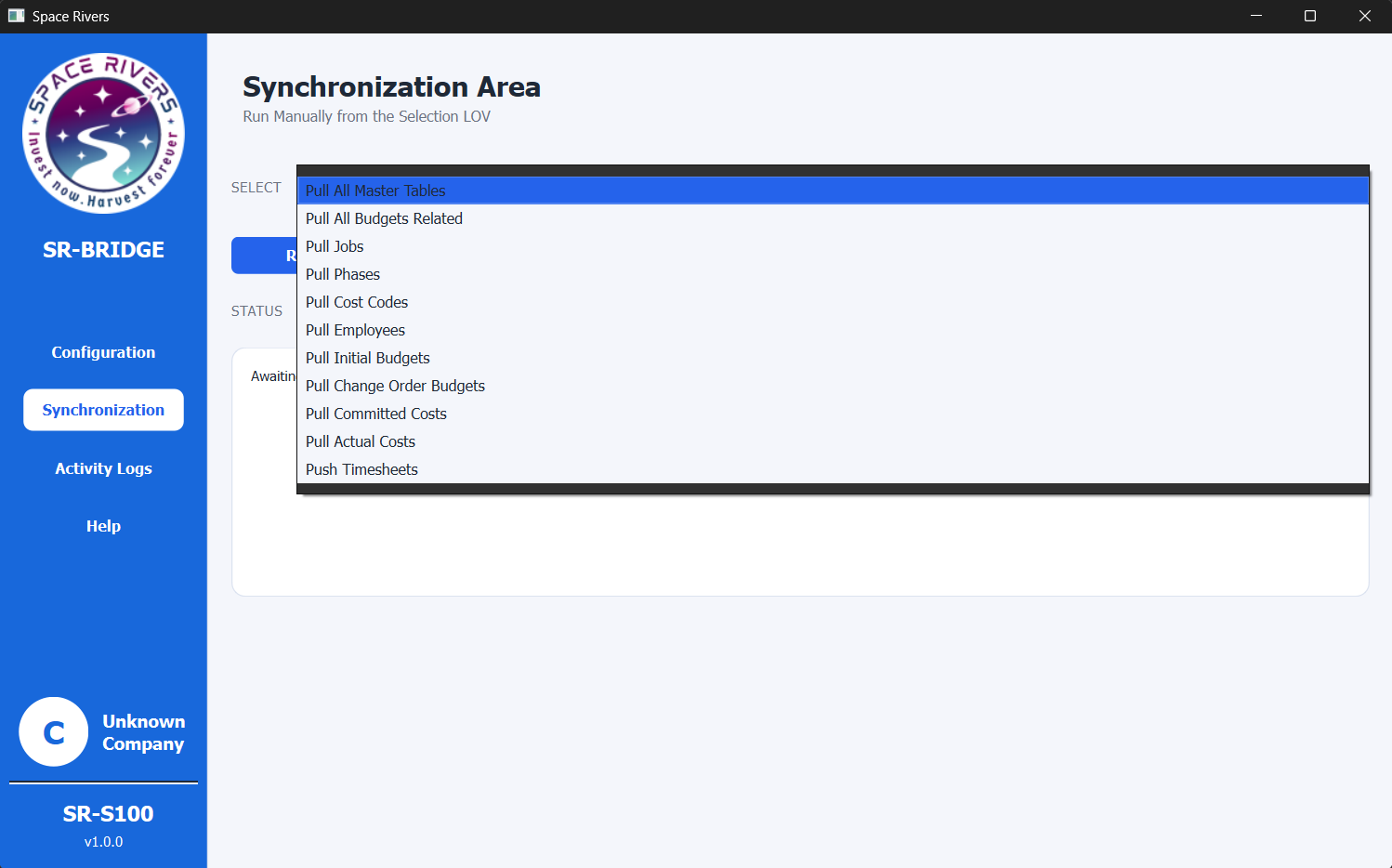
Use the Select list to choose the synchronization action.
The available options shown in the screenshot include:
- Pull All Master Tables
- Pull All Budgets Related
- Pull Jobs
- Pull Phases
- Pull Cost Codes
- Pull Employees
- Pull Initial Budgets
- Pull Change Order Budgets
- Pull Committed Costs
- Pull Actual Costs
- Push Timesheets
Choose the option that matches the data you want SR-BRIDGE to process.
Run
Click Run after you select the action.
This starts the synchronization using the selected option.
Status
The Status area shows the current state of the synchronization page.
It helps you see whether the app is waiting, running, or showing the last result.
Status: Never run
This message means the selected synchronization has not been started yet.
Last Run
This field shows the date and time of the most recent execution, if one exists.
When nothing has run yet, it may show a blank value.
What the sync options mean
Pull All Master Tables
Use this when you want to pull the full master data set.
Pull All Budgets Related
Use this when you want budget-related information together in one run.
Pull Jobs
Use this when you want job data.
Pull Phases
Use this when you want phase data.
Pull Cost Codes
Use this when you want cost code data.
Pull Employees
Use this when you want employee data.
Pull Initial Budgets
Use this when you want initial budget data.
Pull Change Order Budgets
Use this when you want change order budget data.
Pull Committed Costs
Use this when you want committed cost data.
Pull Actual Costs
Use this when you want actual cost data.
Push Timesheets
Use this when you want to send timesheet data.
Step-by-step setup
- Open the SR-BRIDGE desktop app.
- Go to Synchronization in the left menu.
- Open the Select list.
- Choose the synchronization action you want to run.
- Review the selected option carefully.
- Click Run.
- Watch the Status area for the current result.
- Check Last Run after the process completes.
How to confirm the run
After you click Run, confirm that:
- The correct option was selected
- The status area updates
- The last run time appears after the process finishes
If you selected the wrong action, stop and choose the correct one before running again.
Notes and Tips
- Make sure configuration is completed before you start synchronization.
- Choose only the action you actually need for the current run.
- If you are not sure which option to use, confirm it with your administrator before running.
- Check the status area after every run so you know whether the process started correctly.
- Use the run history and last run time to confirm what happened most recently.
Troubleshooting
The page shows "Never run"
This means the selected sync option has not been executed yet.
The wrong sync action was selected
Open the Select list again and choose the correct option before clicking Run.
Nothing seems to happen after clicking Run
Check that:
- The correct option is selected
- The app is not waiting for another action
- The status area is updating
The result does not match what you expected
Review the selected option carefully. Some actions pull master data, some pull budget data, and some push timesheet data.