Activity Logs
Introduction
The Activity Logs page shows the latest SR-BRIDGE run messages in one place.
Use this page to review what the app did, check for success or error messages, and keep track of recent activity.
Overview
This page is a live log viewer.
It helps you see configuration messages, API responses, sync updates, and other run details as they happen.
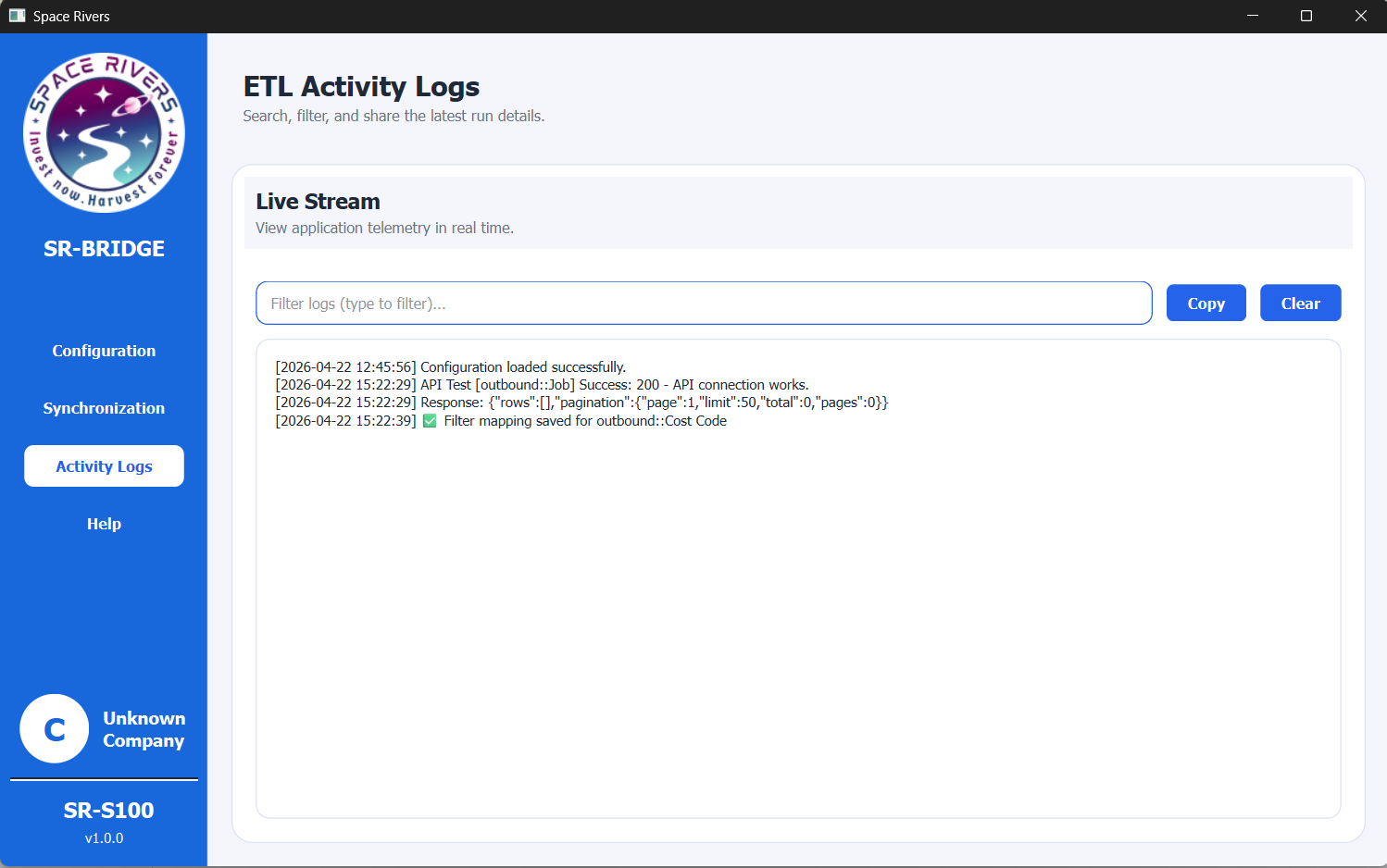
Purpose of this page
This page is used to:
- View the latest application messages
- Search or filter log entries
- Copy the log text if you need to share it
- Clear the visible log area when needed
Field explanation
Live Stream
The Live Stream section shows the current activity feed.
It displays log messages in real time so you can review what SR-BRIDGE is doing.
Filter logs
Use the Filter logs box to search within the visible log text.
Type part of a message, a status, or a keyword to quickly narrow the results.
Copy
Click Copy to copy the log content.
Use this when you want to share the activity details with support, your administrator, or your internal team.
Clear
Click Clear to remove the messages from the visible screen area.
Use this when you want to make the log view easier to read before the next run.
Step-by-step usage
- Open the SR-BRIDGE desktop app.
- Go to Activity Logs in the left menu.
- Review the messages shown in the Live Stream area.
- Use Filter logs if you want to find a specific message.
- Click Copy if you need to share the details.
- Click Clear if you want to clean up the visible log list.
How to read the logs
Each line in the log area represents a message from the application.
The messages may include:
- Configuration loaded successfully
- API test results
- Response details
- Saved settings
- Sync or run status messages
Use the timestamp at the start of each line to understand when the event happened.
Notes and Tips
- Use the log page after configuration or synchronization to confirm what happened.
- Filter by a word or phrase if the list becomes long.
- Copy the log before clearing it if you may need the details later.
- Keep the log content when troubleshooting a connection or synchronization problem.
Troubleshooting
No messages appear
Check whether the application has started any action yet. If no run has happened, the log area may still be empty or show only initial status messages.
I cannot find a specific message
Use the Filter logs box and enter part of the message or keyword.
I cleared the log by mistake
Clear only affects what you see on screen. Start the action again if you need fresh log entries.